






Passkeys Are Now in UnderDefense MAXI – Here’s Why They Matter
Every security team has had the same uncomfortable conversation at some point: our MFA is fine, right? Yes. Technically. Until the day someone lands on a fake login page, types their password, types their six-digit code from the authenticator app, and hands an attacker full access in under thirty seconds – while feeling like they did everything right.
Adversary-in-the-middle phishing kits are now a commodity. Toolkits like Evilginx and Tycoon 2FA turn real-time credential + MFA relay into a point-and-click operation. Microsoft’s latest Digital Defense reporting tracks tens of millions of AiTM phishing attempts per month. The uncomfortable truth: the industry’s default answer – password + TOTP – was designed before this threat existed, and it’s been quietly failing ever since.
That’s why we shipped passkey support in UnderDefense MAXI. It’s the final piece of our authentication protection stack. We’re not saying “crown jewel” because that would be cliché. We’re saying it’s the thing that finally makes the whole system not embarrassing.
To understand why we added it, you need to understand why password + MFA is no longer enough.
Two core problems with password + TOTP
- Password + TOTP does not protect you from phishing.
- Password + TOTP + password manager has too many moving parts – and humans make mistakes.
Spoiler: humans always make mistakes. That’s kind of our whole thing.
Why doesn’t password + MFA protect against phishing?
Because attackers have gotten annoyingly good at being patient and fast at the same time.
Imagine you land on a fake website that looks identical to the real one. Pixel perfect. Same logo, same font, same slightly-too-small copyright notice at the bottom. You enter your password. The attacker captures it instantly. Then a prompt appears asking for your one-time TOTP code – exactly where you’d expect it.
You enter it. The attacker captures that too.
Now they have both factors. They log into the real site immediately, change the credentials, register their own MFA device, and lock you out. Your account is hijacked in real time – while you’re still staring at the fake login screen wondering why it’s loading slowly.
The painful part: your phone buzzed with that TOTP notification, you confirmed it like a responsible adult, and the attacker used your diligence against you. Perfect.
Where a password manager helps – and where it doesn’t
A password manager adds meaningful protection. When you register on a new site, it automatically:
- Generates a strong, unique password.
- Encrypts and stores the login + password pair.
- Saves the exact website address.
That third point is the quiet hero. When you visit a site again, the password manager checks the address. If it doesn’t match the saved original, it won’t offer to autofill – silently refusing to cooperate with the phishing site. No fanfare, no warning popup, just a polite “I don’t recognize this place” and nothing happens. The fake site gets nothing.
But this protection depends on you using the password manager correctly, every time. No copy-pasting out of frustration. No manual entry because “the extension is being weird today.” No disabling it during a demo. That’s the human factor problem – and as established above, humans are not exactly consistent.
Why is the password concept itself flawed?
A password is a secret you keep in your head and transmit over the network to prove your identity. Read that sentence again and appreciate how structurally unhinged it is.
You’re taking your secret, converting it into text, and mailing it to a server you don’t own so they can check if it matches the copy they have stored somewhere. Probably in a database. Hopefully encrypted. Maybe.
Passwords can be forgotten, guessed, brute-forced, phished, or leaked in a breach. Every one of those failure modes exists because passwords are human-readable secrets designed to be typed by humans. That’s the root weakness – we designed authentication around the most fallible component in the system and then acted surprised every time it failed.
What is a passkey, fundamentally?
A passkey is closer in nature to a physical object – something you have – rather than a phrase you know.
In technical terms, a passkey is not a 256-bit random string. It is an ECC private key based on the P-256 curve, where the “256” refers to the size of the curve (the size of the prime number), and its actual security strength is approximately 128 bits. The key is generated by a dedicated security chip on your device, such as the Secure Enclave on Apple hardware, TPM 2.0 on Windows, or StrongBox on Android. It’s not something you memorize. It’s not something you type. You never even see it. It just quietly exists on your device, minding its business.
To put the security margin in perspective: brute-forcing a key on a modern laptop would take on the order of 10⁵⁷ years. The universe is about 13.8 billion years old (roughly 1.4 × 10¹⁰ years), so we’re talking timescales that make geological epochs look impatient. The number isn’t meant to be precise – it means the key is computationally unguessable. Full stop.
Because the passkey is impossible to memorize and never needs to be typed, it can be treated as a hardware-bound secret – protected by your device, not your memory. Which is great news, because your memory forgot where it put its keys again.
How does a passkey actually work?
You can create a passkey on any device you own – phone, laptop, desktop – for any website that supports them. Here’s what happens, step by step.
Registration (one time per device):
- You visit a site that supports passkeys and choose to register one.
- Your browser prompts you for biometric confirmation (face scan or fingerprint) or a device PIN.
- Your device’s security chip generates a linked pair of keys: a private key and a public key.
- The private key is stored inside the security chip and never leaves the device.
- The public key is sent to and stored by the website.
If you use five devices to log in to the same site, each device generates its own unique private key. The website stores five corresponding public keys. This is intentional – if one device is lost or compromised, you revoke just that key. The others keep working. Think of it as responsible key hygiene, rather than the classic “same password on every site” approach that we don’t talk about.
Why a key pair instead of a single secret?
Because you should never send your secret over the network – it could be intercepted. And we’ve established that things on the network get intercepted. A lot.
Cryptographers solved this problem elegantly with asymmetric key pairs. The two keys have a mathematically linked but one-way relationship:
- Private key + any text → a digital signature. Only the matching public key can verify it.
- Public key + any text → an encrypted message. Only the matching private key can decrypt it.
Your private key never leaves your device. You share only the public key – with the website, with anyone, it doesn’t matter. Without the private key, the public key is cryptographically useless. It’s like publishing your house address without handing out copies of the key: people know where you live, but still can’t get in. Mostly. Don’t test this metaphor.
Logging in with a passkey
Every time you log in, a short and entirely automatic ceremony takes place. No typing required from you, which is the whole point.
- The website sends your browser a random challenge string.
- Your browser prompts you for biometric confirmation.
- Your device’s security chip signs the challenge with your private key.
- The signed response is sent back to the website.
- The website verifies the signature using your stored public key. If it matches, you’re authenticated.
Notice what didn’t cross the network: your password. Your private key. Any shared secret whatsoever. The website only ever receives a signature – mathematical proof that you hold the private key, without the key itself ever leaving your device. It’s the cryptographic equivalent of proving you know the secret handshake without performing it in public.
Why passkeys defeat real-time phishing
A fake website can capture your password. It can relay your TOTP code. But it cannot extract your private key – because the private key never leaves your device’s security chip. There’s simply nothing to steal.
There’s a second layer that makes this even more robust: passkeys are cryptographically bound to the exact domain they were created for. Your device will not sign a challenge from a different domain, even one that is pixel-for-pixel identical to the real thing. The phishing site sends a challenge, your device looks at the domain, says “I don’t know you,” and returns nothing. The attacker gets a blank stare.
This is the part most people miss: passkeys don’t rely on the user spotting the fake URL. The protection is enforced in silicon, not in judgment. The browser and the security chip handle domain validation automatically, every single time. The user could be exhausted, distracted, or new on the job – the cryptography doesn’t care.
Physical coercion is theoretically still possible – someone could, in principle, press your finger to the sensor against your will – but that’s a different threat model entirely and a considerably harder attack to scale. We’ll file that one under “problems for a different blog post.”
What this means for UnderDefense MAXI users
Adding passkey support to MAXI wasn’t a “nice-to-have” box we checked. It was a deliberate decision about what a security platform should be defended by. The people using MAXI – CISOs, analysts, incident responders – are exactly the targets threat actors hunt for. If their admin credentials fall, so does the view into their entire environment.
So we raised our own floor:
- No shared secrets over the wire. Even if an attacker somehow compromised the TLS layer, there’s nothing to replay.
- No credential phishing. MAXI’s passkeys are bound to our domain. Lookalikes don’t work.
- No forgotten-password recovery attack surface. Device-based keys replace the weakest link in most account takeover chains.
- Per-device revocation. Lost a laptop? Revoke that one key. Everything else keeps working.
Passkeys remove the human factor from authentication. No passwords to phish. No TOTP codes to relay. No secrets ever leave your device.
Conclusion: The End of the “Strong Password” Era
For two decades, the security industry has been asking users to compensate for a broken primitive. Make your password longer. Make it weirder. Rotate it every 90 days. Add a second factor. Add a third. The whole stack has been an attempt to patch a design flaw that was baked in from the start: passwords are human-readable secrets transmitted over networks, and every mitigation layered on top is a workaround.
Passkeys aren’t a patch. They’re a replacement. They remove the shared secret, remove the typing, remove the domain guesswork, and remove the user from the authentication decision in the ways that used to get them phished. What’s left is cryptographic proof of possession – the kind of guarantee that doesn’t care how tired the analyst is at 2 a.m.
That’s why passkeys now power authentication inside UnderDefense MAXI. And it’s why “just use a stronger password” was never going to be enough.
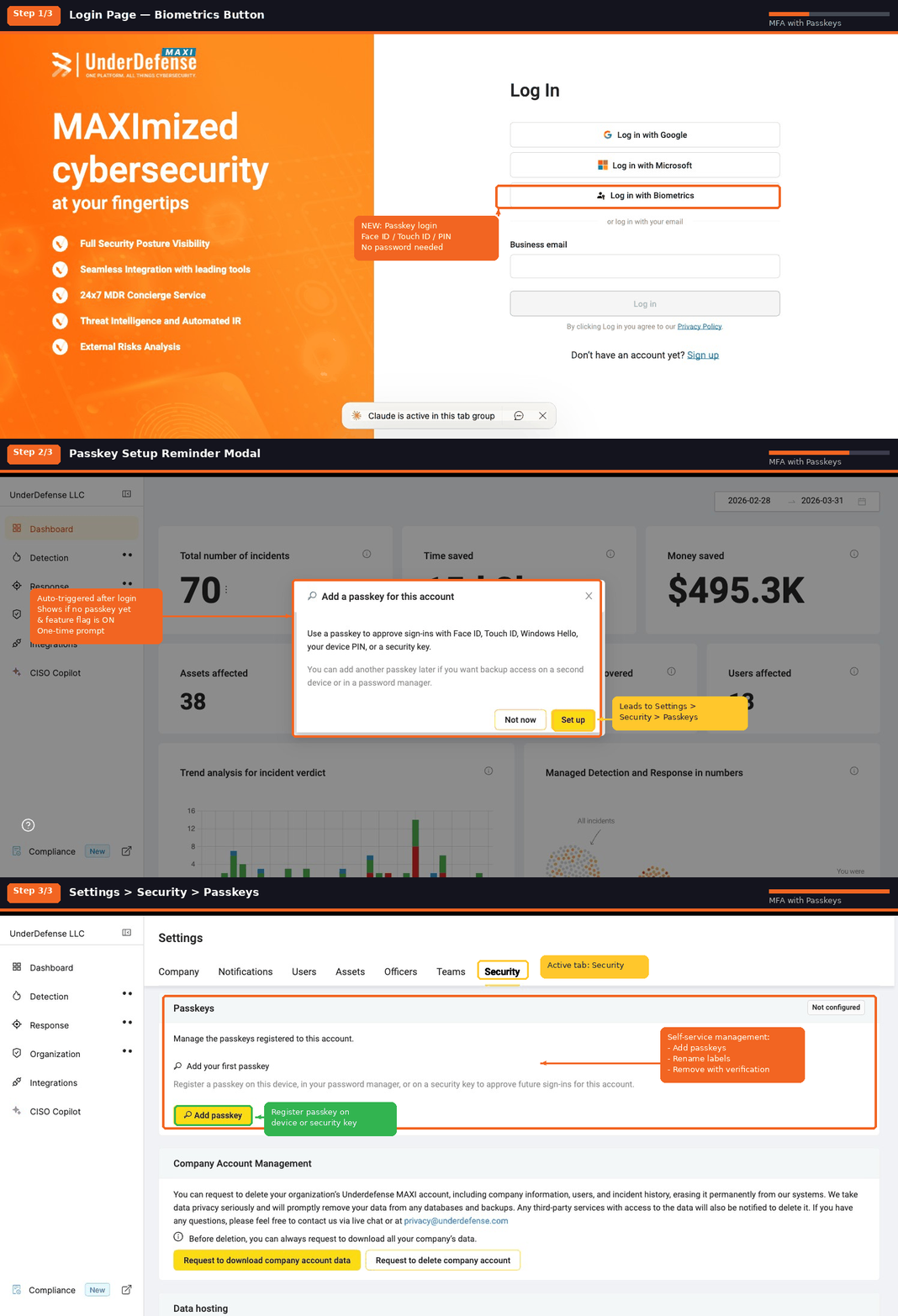
If you’re evaluating your own authentication posture – or running an MDR engagement with us and haven’t enabled passkeys in your MAXI tenant yet – reach out to your UnderDefense team. It’s a ten-minute setup and a meaningful upgrade to your identity security.
1. What is a passkey and how is it different from a password?
A passkey is a 256-bit cryptographic private key stored inside your device’s security chip (Secure Enclave, TPM, or StrongBox). You never see it, type it, or memorize it. A password, by contrast, is a human-readable secret you transmit over the network every time you log in. Passkeys replace that shared-secret model with a public/private key pair – the website only ever stores the public key, and your private key never leaves your device. That single architectural change eliminates whole categories of attacks: phishing, credential stuffing, brute-forcing, and password database breaches.
2. Are passkeys more secure than MFA or two-factor authentication?
Yes, meaningfully so. Traditional MFA (password + TOTP or SMS) is vulnerable to real-time phishing via adversary-in-the-middle (AiTM) toolkits like Evilginx and Tycoon 2FA, which relay both factors to the real site in under a second. Passkeys are considered phishing-resistant MFA because the private key is cryptographically bound to the legitimate domain – your device will not sign an authentication challenge from a fake site, no matter how convincing it looks. Passkeys also satisfy NIST AAL3 and CISA’s “phishing-resistant MFA” guidance, which TOTP does not.
3. Can passkeys be hacked or phished?
In practical terms, no – not by the attack methods that dominate real-world breaches today. The private key never leaves the secure hardware chip on your device, so there’s nothing to steal from a fake website. Domain binding prevents the key from being used on lookalike sites. Brute-forcing a 256-bit key is computationally infeasible on any hardware that exists or is projected to exist. Theoretical risks remain – physical coercion, compromised operating systems with kernel-level access, or supply-chain attacks on the security chip itself – but these are exponentially harder to scale than the credential phishing that currently drives most account takeovers.
4. What happens if I lose the device with my passkey on it?
Each device generates its own unique passkey, so losing one device doesn’t lock you out of everything. You have two recovery paths. First, if you have other enrolled devices (phone, laptop, tablet), you can still log in from any of them and revoke just the lost device’s public key on the server side. Second, most modern platforms – Apple iCloud Keychain, Google Password Manager, Microsoft Authenticator, 1Password – sync passkeys across your devices through end-to-end encrypted cloud storage, so a new device can restore access after identity verification. This is why passkey hygiene recommends enrolling at least two devices per important account.
5. Do passkeys work across different browsers, devices, and operating systems?
Yes. Passkeys are built on the open FIDO2 and WebAuthn standards, which are supported across every major ecosystem: iOS, macOS, Android, Windows, ChromeOS, and Linux, and in Chrome, Safari, Edge, Firefox, and Brave. You can authenticate on a desktop using a passkey stored on your phone via Bluetooth proximity (cross-device authentication), or sync passkeys across your own devices through your platform’s password manager. For enterprise deployments like UnderDefense MAXI, this means your team can use passkeys regardless of whether they’re on a corporate laptop, a personal phone, or a managed tablet – the underlying protocol is the same.