






As AI-powered tools become more sophisticated, so do the risks of them being misused. Unauthorized AI bots can silently join Microsoft Teams meetings, record sensitive conversations, extract data, or mimic participants — all without obvious signs. In a world where deepfakes, automated reconnaissance, and data scraping are real threats, securing your collaboration tools isn’t optional. This guide will walk you through practical steps reduce risk with Microsoft Teams from unauthorized AI-driven intrusions and ensure your conversations stay private, secure, and human-led.
What is a meeting AI bot?
A Meeting AI Bot is an AI-powered virtual assistant designed to enhance meetings by automating various tasks such as transcription, summarization, note-taking, scheduling, and follow-up actions. These bots integrate with video conferencing platforms like Zoom, Microsoft Teams, Google Meet, and Slack to improve productivity and collaboration.
Common features of meeting AI bots
- Live Transcription – Converts spoken words into text in real time.
- Meeting Summarization – Generates key takeaways and action items.
- Automatic Note-Taking – Captures and organizes important points.
- Scheduling & Reminders – Helps book meetings and send reminders.
- Speaker Identification – Recognizes different participants for better clarity.
- AI-Powered Insights – Analyzes discussions to highlight trends or decisions.
Popular examples include Otter.ai, Fireflies.ai, Avoma, and Microsoft Copilot. While these tools can be beneficial when authorized, organizations concerned about unauthorized recordings may need to block Otter.ai in Teams and other similar AI transcription services to maintain meeting confidentiality.
Risks of using meeting AI bots
While meeting AI Bots offer convenience and productivity benefits, their usage comes with several risks, particularly regarding security, privacy, and compliance. The risks can be grouped into several categories.
Privacy & data security risks:
- Unauthorized Data Collection – AI bots record and transcribe conversations, which may include sensitive or confidential information.
- Data Storage & Retention – Some AI bots store transcriptions in the cloud, increasing the risk of data breaches.
- Third-Party Access – If the bot provider lacks strong security controls, unauthorized parties could access meeting data.
Compliance & legal risks:
- Regulatory Violations – Using AI bots without proper consent may violate GDPR, HIPAA, or other privacy laws.
- Lack of User Consent – Some participants may not be aware that the meeting is being recorded, leading to legal issues.
- Intellectual Property Concerns – Meeting content could be stored or processed in ways that expose trade secrets or proprietary information. Learn how organizations respond to and recover from such threats in our ransomware attack response case study.
AI misinterpretation & bias:
- Inaccurate Transcriptions – AI may misinterpret speech, leading to incorrect summaries or decisions.
- Speaker Misidentification – Bots might attribute statements to the wrong individuals, creating confusion.
Cybersecurity risks:
- Potential for AI Hijacking – Malicious actors could exploit vulnerabilities in AI bots to eavesdrop or manipulate data.
- Phishing & Deepfake Threats – AI-generated voice models could be misused for impersonation attacks.
Organizations must understand that AI integration introduces new attack vectors that require comprehensive security strategies. For a deeper analysis of real-world AI exploits and practical mitigation techniques, see a guide from our penetration testing specialist on risks of AI integration and mitigation steps.
How to set up your meeting tools to block unapproved AI bots
To minimize security and privacy risks during virtual meetings, it’s crucial to properly configure your meeting platform. Implementing key best practices—such as access controls, participant verification, and bot detection can help ensure your discussions remain secure and uninterrupted.
1. Enable the waiting room or lobby
Activating the waiting room or lobby feature requires participants to be manually admitted by the host. Most platforms allow you to configure this so that only the meeting owner or designated co-hosts can bypass the lobby. This offers an opportunity to vet attendees before they enter the meeting.
⚠️ Consideration: Manual admission can be time-consuming, particularly for large meetings, and may interrupt the flow of conversation.
2. Restrict access by domain
Use domain-based access controls to limit who can join your meetings. Creating an allow list of trusted domains is a proactive way to strengthen access control and prevent unauthorized entry.
3. Block anonymous users
Prevent anonymous participants from joining by requiring users to sign in with verified accounts. This measure significantly reduces the risk of bot or unauthorized access.
⚠️ Consideration: While this improves security, it may cause friction for legitimate users who lack accounts or experience login issues.
By following these best practices, you can create a safer and more controlled virtual meeting environment—keeping sensitive conversations protected from both human and AI-driven threats.
Using multiple meeting tools?
See how to block AI bots in Zoom, and Google Meet.
- Google Meet: How to secure your Google meetings against AI bots
- Zoom: Configure Zoom to avoid unauthorized AI bot usage
How to configure your meeting tool to avoid unauthorized AI bot usage in Microsoft Teams
As AI-powered plugins, assistants, and bots become more common, so do the risks of data leakage, shadow AI usage, and unauthorized recording or summarization. To ensure tools like Teams block AI bots from accessing your sensitive meetings, you’ll need to implement multiple layers of security. Here’s how to tighten control within Microsoft Teams.
To manage meeting join and lobby policies, follow these steps:
1. In the Teams admin center, expand Meetings and then select Meeting policies.

2. Select the policy that you want to update.
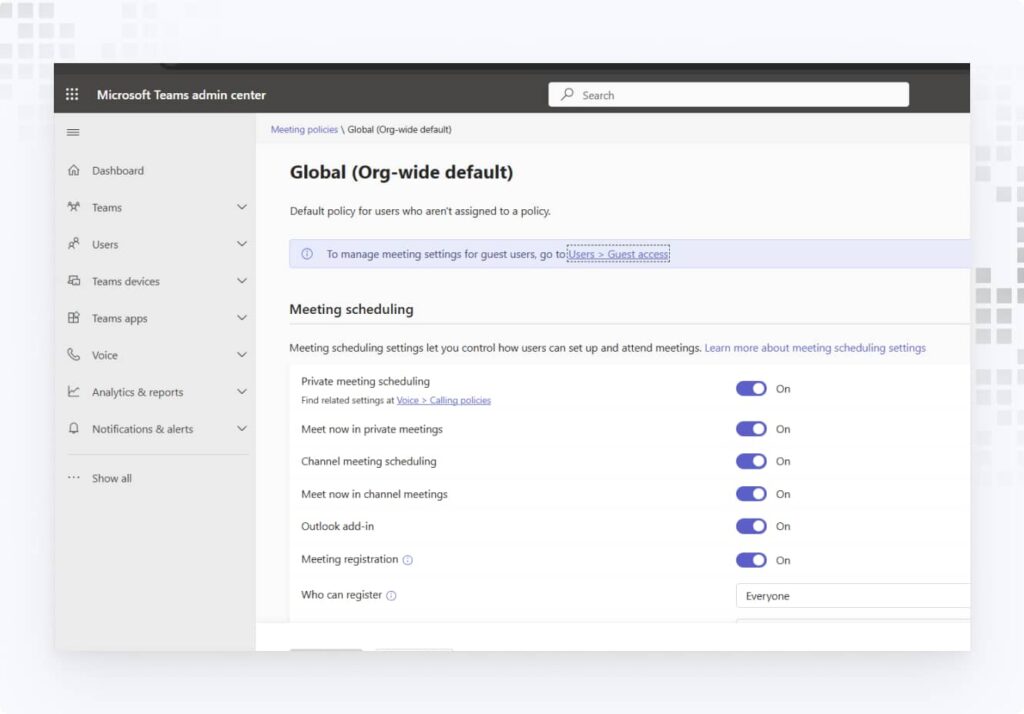
3. In the Meeting join & lobby sections, update the settings that you want to change:
- who can admit from the lobby
- if anonymous users can join a meeting
- if anonymous users and dial-in callers can start a meeting
- who can bypass the lobby (Who can bypass the lobby)
- if people dialing in can bypass the lobby
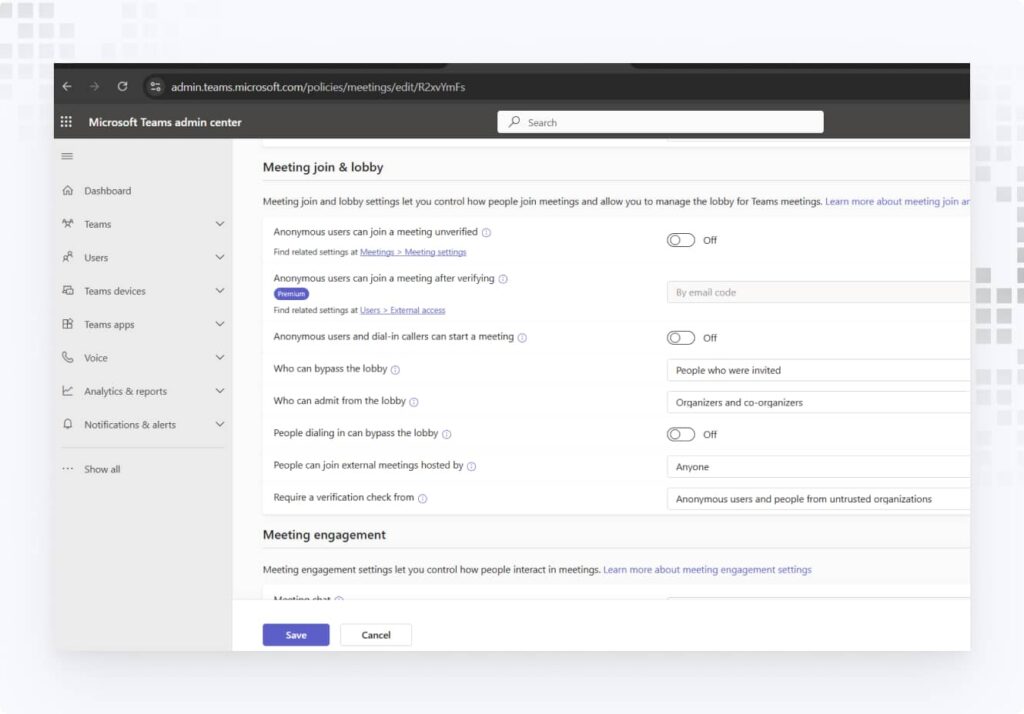
4. Select Save. Changes can take up to 24 hours to take effect.
Allow or ban users by the domain
Restrict access by blocking users from specific domains: allow list is preferable.
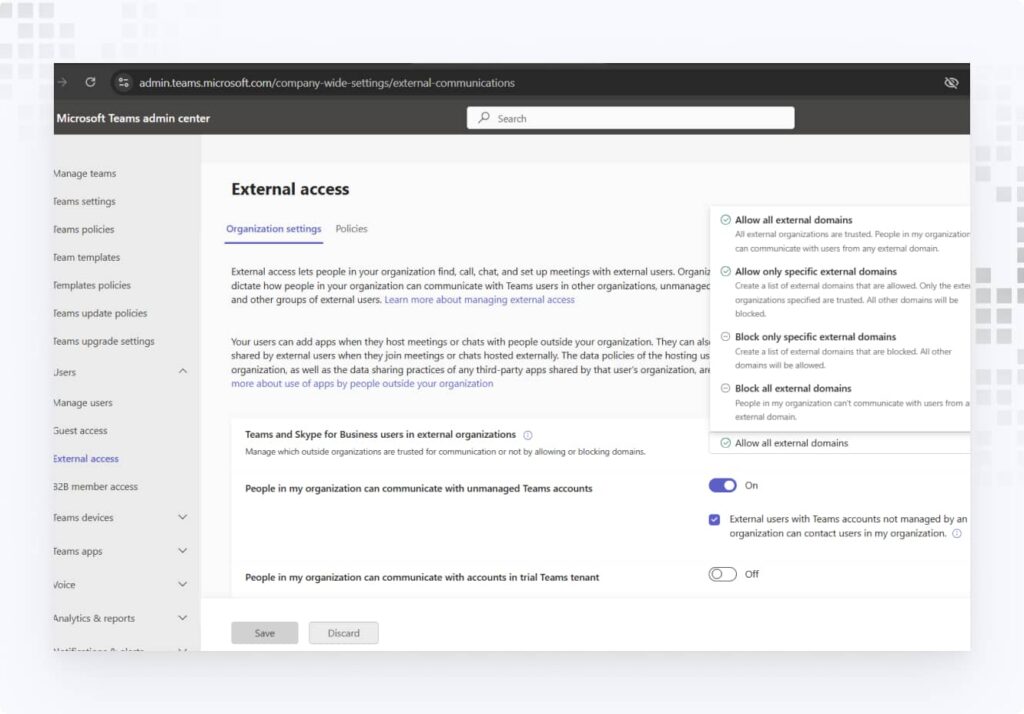
For meetings and chat with other Microsoft 365 organizations, you can specify which domains you want to trust. By default, all external domains are allowed. You can allow or block certain domains in order to define which organizations your organization trusts for external meetings and chat.
In order to chat and meet with people in external domains, the organizations that you trust must also trust your organization, and their users must be enabled for external access. If not, they won’t be able to chat with users in your organization and are considered anonymous when joining meetings hosted by your organization. Learn more about meetings with other Microsoft 365 organizations.
You can specify which domains are allowed or which domains are blocked. If you specify blocked domains, all other domains are allowed; if you specify allowed domains, all other domains are blocked. There are four scenarios for configuring trusted organizations:
- Allow all external domains — The default setting in Teams, and it lets users in your organization find, call, chat, and set up meetings with people external to your organization in any domain. In this scenario, your users can communicate with all external domains that are running Teams or Skype for Business, so long as the other organization has also enabled external access.
- Allow only specific external domains — By adding domains to an Allow list, you limit external access to only the allowed domains. Once you set up a list of allowed domains, all other domains are blocked.
- Block specific domains — By adding domains to a Block list, you can communicate with all external domains except the ones you’ve blocked. Once you set up a list of blocked domains, all other domains are allowed.
- Block all external domains — Prevents users in your organization from finding, calling, chatting, and setting up meetings with people external to your organization in any domain.
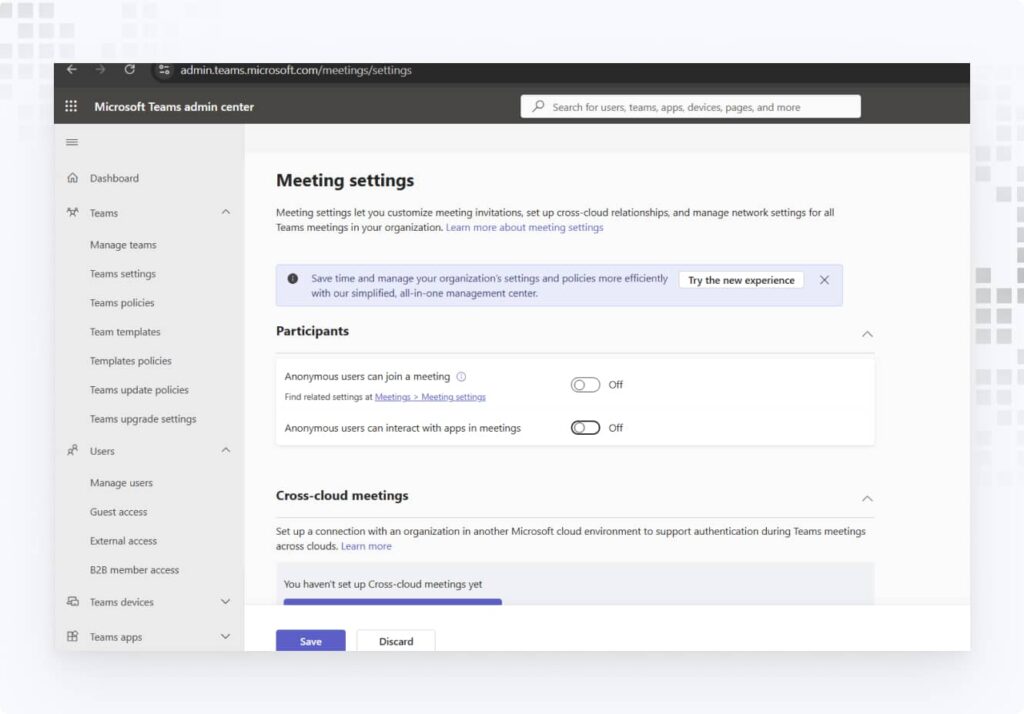
Block anonymous users
Disable the option for anonymous participants to join your meeting. This is one of the most effective methods for how to stop Otter.ai from joining meetings, as these bots typically join anonymously without proper authentication. Downside: While effective, this can inconvenience legitimate participants who don’t have Microsoft accounts or face issues signing in.
- Go to the Teams admin center.
- Meeting settings.
- Under Participants, toggle the Anonymous users can join a meeting setting On or Off.
- Select Save.
Meeting security is just one component of a working cybersecurity strategy. If your current security measures aren’t adequately protecting your collaboration tools and other critical systems, it may be time to evaluate your options. Discover why businesses switch cybersecurity providers and what to look for in a security partner.
Not Sure How To Protect Your Workload?
Bottom line
Securing your Microsoft Teams meetings from unauthorized AI bots requires a multi-layered strategy that includes strong authentication, access control policies, ongoing monitoring, and employee awareness. By implementing best practices and enforcing clear governance, you can reduce the risk of AI-driven eavesdropping, data leakage, or unapproved tool usage.
Stay proactive because in the modern digital workspace, visibility and control are your best defenses. Educate your team, monitor usage, and enforce the right settings to keep your collaboration both productive and protected.
Related Resource:
While this guide focuses on Microsoft Teams, organizations using multiple collaboration platforms need consistent security across all tools. If you also use Zoom for meetings, check out another guide on how to configure Zoom to avoid unauthorized AI bots.
1. What are AI bots and why are they a risk in Microsoft Teams?
AI bots are automated tools that can join meetings, interact with users, or even transcribe and analyze conversations. While some are legitimate productivity tools, unauthorized AI bots can lead to data leakage, privacy violations, and compliance risks by capturing sensitive information without proper controls.
2. Can bots join a Teams meeting without being noticed?
Yes — if not properly configured, unauthorized apps or bots can be added by users or join as guest participants. Some AI tools may also work silently in the background or integrate via third-party platforms. Proper access and app control policies are essential to prevent this.
3. How can I block third-party AI bots from being used in Teams?
Go to the Teams Admin Center → Teams Apps > Permission Policies, and set policies to:
-
Block third-party apps
-
Disable custom app uploads
-
Allow only a list of approved apps
Apply these settings to all users or high-risk groups (e.g., contractors, guests).
4. What are signs of an unauthorized bot in my meeting?
Look for users with generic names, no audio/video, or suspicious behavior (e.g., silent presence or rapid rejoining).
5. What role does user training play in AI bot protection?
A critical one. Even with technical controls, users may unknowingly grant access to AI tools via browser extensions, plugins, or integrations. Regular awareness training helps employees:
-
Spot risky AI tools
-
Understand policy
-
Know how to report concerns