







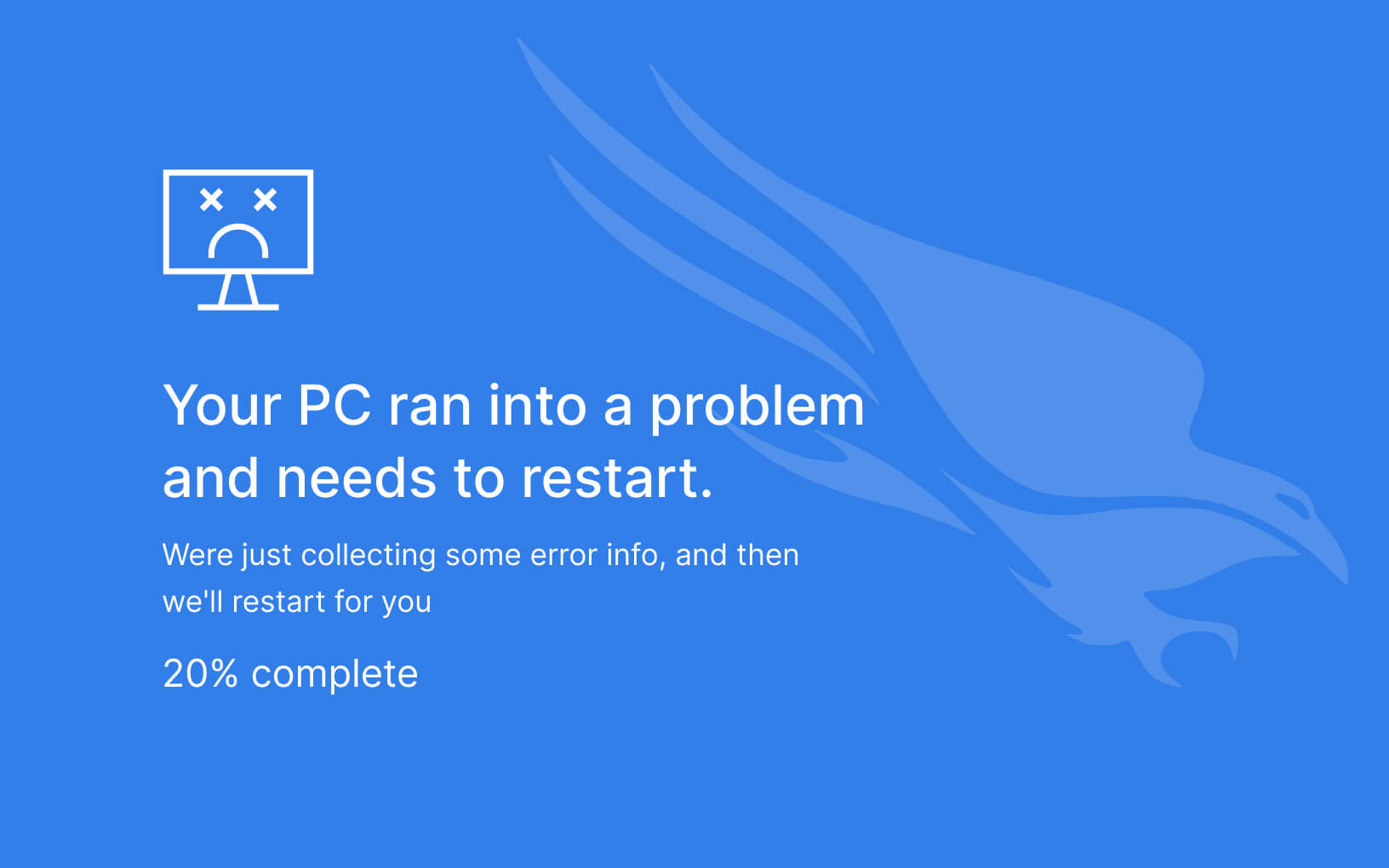

A recent update from cybersecurity company CrowdStrike has sparked a widespread crisis, causing Windows 10 systems to crash with a Blue Screen of Death (BSOD). Known for their endpoint protection and threat intelligence services, CrowdStrike is actively working to fix the issue and assist users and organizations in restoring their systems.
On July 15, CrowdStrike released a new version of the Falcon Sensor (Falcon Complete Next-Gen MDR) that appeared to be corrupted. On July 19, this version led to Windows Blue Screen of Death errors and restart loops.
Here, you will find the outage details and a list of further actions on how to fix/workaround the Blue Screen of Death and “Recovery.” It looks like Windows didn’t load correctly” loop caused by CrowdStrike.
Outage Details
Many media companies, tech firms, schools, and universities are currently experiencing a Blue Screen of Death (BSOD) on Windows 10 systems. Affected PCs are stuck at the “Recovery” screen, which displays the message: “It looks like Windows didn’t load correctly. If you’d like to restart and try again, choose Restart my PC below.”
This issue has severely disrupted airport operations in the US, Spain, and Germany, resulting in numerous flight delays. According to the US Civil Aviation Authority, major airlines such as American Airlines, United Airlines, and Delta Airlines have grounded all flights due to global communication problems.
CrowdStrike has acknowledged reports of crashes on Windows systems linked to the Falcon Sensor. CrowdStrike Engineering has pinpointed a content deployment as the cause and has reverted those changes.
Please refer to the Further Actions section if you continue to crash and/or cannot stay online to receive the updated Channel File Changes. Here, you can contact CrowdStrike’s official statement and support portal.
Your Further Actions
Here is the list of further actions explaining how to fix/workaround the BSOD and “Recovery” It looks like Windows didn’t load correctly” loop caused by CrowdStrike.
- Access the device via Safe Mode. Advanced startup options (including safe mode) by Microsoft Support are here.
- Press and hold the F8 key as your computer restarts. You need to press F8 before the Windows logo appears
- On the Advanced Boot Options screen, use the arrow keys to highlight the safe mode.
- Log on to your computer with a user account that has administrator rights, choose “Safe Mode with Command Prompt” or another suitable option.
- Navigate to the C:\Windows\System32\drivers\CrowdStrike directory.
- Locate the file matching “C-00000291*.sys” and delete it.
- Boot the host normally afterward.
Updates Timeline
Friday, July 19, 2024 6:30 UTC
CrowdStrike has acknowledged reports of crashes on Windows systems and issued a recovery guide.
Friday, July 19, 2024 8:30 UTC
CrowdStrike reverts the changes; some hosts are confirmed to return to normal operations without a need to apply manual fixes via Safe Mode.
Friday, July 19, 2024 8:42 UTC
CrowdStrike statement for members of the Partner Program:
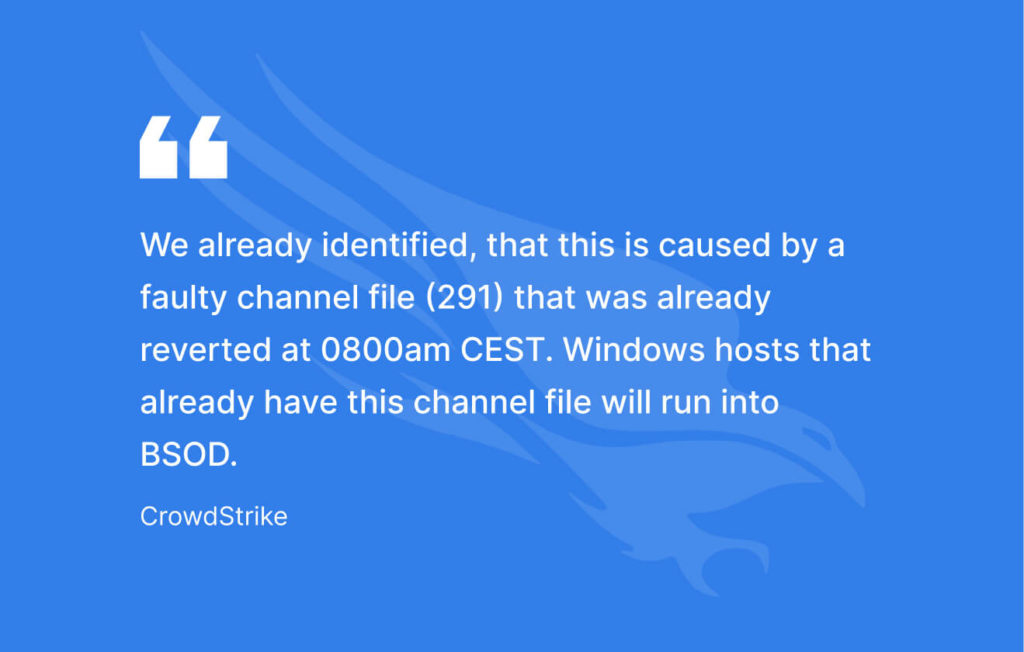
We already identified, that this is caused by a faulty channel file (291) that was already reverted at 0800am CEST. Windows hosts that already have this channel file will run into BSOD.
Windows hosts that did not get the channel file (either because not connected to the cloud or being offline) are NOT affected and will not be affected starting by now. Windows hosts that are affected but are able to connect back to cloud will receive the update and recover without the need to manually touch them.
Windows hosts that are affected and stuck in a boot loop would need to be restored manually by using the following workaround:
- Boot Windows into Safe Mode or the Windows Recovery Environment
- Navigate to the C:\Windows\System32\drivers\CrowdStrike directory
- Locate the file matching “C-00000291*.sys”, and delete it.
- Boot the host normally
The following query will result in a list of hosts, that have received the faulty channel file for cross-checking:
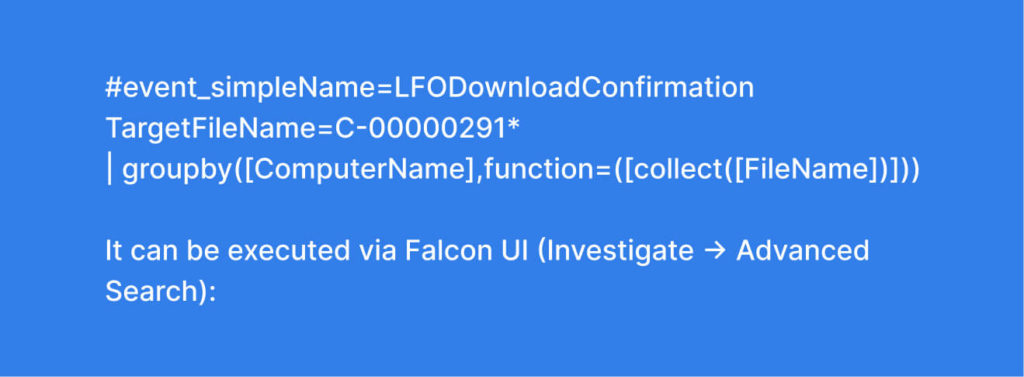
Hosts, that only show version “00000032.sys” are still affected by the bug. Machines that have newer version (00000033.sys, 00000034.sys) are not affected anymore and recovered.
Friday, July 19, 2024 8:08 UTC
Workaround Steps for public cloud or similar environment:
- Detach the operating system disk volume from the impacted virtual server
- Create a snapshot or backup of the disk volume before proceeding further as a precaution against unintended changes
- Attach/mount the volume to a new virtual server
- Navigate to the C:\Windows\System32\drivers\CrowdStrike directory
- Locate the file matching “C-00000291*.sys”, and delete it.
- Detach the volume from the new virtual server
- Reattach the fixed volume to the impacted virtual server.
Friday, July 19, 2024 8:34 UTC
If the folder C:\Windows\System32\drivers\CrowdStrike does not exist, or you can not access it for some other reason, you should load OS from Live USB / Live CD and proceed with the usual Safe Boot steps.
Friday, July 19, 2024 9:37 UTC
You may also try fixing the issue using GPO settings to force hosts into Safe Boot and run the scripts remotely, an example of such an approach can be found here.
Conclusion: What’s next?
The CEO of CrowdStrike, George Kutz, said the IT issue causing a global outage has been identified and a fix has been deployed. However, the full impact of this incident on CrowdStrike’s reputation and the broader cybersecurity industry remains uncertain.
While some services like Microsoft Defender, Intune, OneNote, OneDrive for Business, SharePoint Online, and Windows 365 have recovered, Microsoft continues to address lingering issues. Some apps remain in read-only mode or experience delays. Microsoft is actively working on solutions and will provide the next update by July 19, 2024, at 7:30 AM UTC to emphasize their commitment to resolving the problem. You can follow the tech giant’s updates here.
The story is still developing…